








Why you can trust TechRadar
We spend hours testing every product or service we review, so you can be sure you’re buying the best. Find out more about how we test.
Adobe InDesign is the industry-standard desktop publishing and page layout software. And it’s been that way for many years now, ever since the tool stole the crown of QuarkXpress to become the best DTP software.
So, with some new updates, I wanted to take a look at some of the new features I feel will be valuable to most of our workflows. As changes do occur to the software over time, the version I explored was 21.3.
Adobe InDesign: Pricing & plans
- Subscription-only
- Creative Cloud discounts for students and teachers
Adobe isn’t cheap. It’s high-end professional software that comes at a cost. On top of that, you don’t buy your software with Adobe, you merely rent it. Stop paying and it no longer works.

Yes, initially it’s cheaper than purchasing software outright, but over time that saving becomes questionable, as it is for all subscription services. You do get the advantage of enjoying the latest features as and when they’re released though.
Subscribing to InDesign on an annual contract will cost you $23 a month. Scrolling through the available plans, you might think getting the Creative Cloud Pro plan would be a better deal: after all, it’s $35 a month for over 20 apps, including InDesign, Photoshop, Illustrator and more. That’s just $12 more. But bear in mind this price is only an introductory offer. After three months, it jumps to $70 a month on an annual contract.
If you’re curious about the software, a free 7-day trial is on offer, and if you decide to go for a subscription, Adobe won’t charge you for the first 14 days.
Additionally, students and teachers have a sweet deal: $20 a month for the entire Creative Cloud Pro portfolio.
Adobe InDesign: Performance & online work

- Improved performance on PC
- A refined experience when working with files online
- The collaboration tool shows promise, but somewhat glitchy
Let’s take a look under the hood first, shall we? Not the most glamorous of new features, but InDesign now makes use of your computer’s GPU to help render your files. Usually, renders are done in low-res to help speed up document manipulation and scrolling, but by using the GPU, these previews should be of higher quality, while freeing up the CPU to handle text layout and general multitasking, thereby improving performance.
This feature is on by default as long as your graphics card is compatible, but you are free to disable it should you want to. You’ll find a tick box in your Settings, under ‘GPU Performance’ to do just that, but if the new rendering works as expected for your needs, why disable it?
Designing on your computer is one thing, but what if you need to work on the go and use a different machine while doing so, or better yet, collaborate with other member of your team?
All that’s been improved in the latest version of InDesign. Take organising, and sharing your work online. You can now do this within the app itself, by using the Creative Cloud app, or by login online and perform the same actions from a web browser. You’re able to create new folders, move docs around, rename, duplicate and delete them. All standard fare.
What I quite liked was the ability to “Sync for 7 days” – say you need to work offline for a while. This allows you to grab those files and the moment you reconnect, they’ll sync up once more.
Then there’s the Share options. The most interesting one is being able to ‘Share for Text Editing’. This allows you to collaborate with others as they make modifications which will be reflected instantly on your own version. Sounds exciting, right? And I’m sure in time it will be, but there are some pretty big caveats.
For one thing, as the command suggests, you can only perform edits to the text. You can’t alter the layout, change images, or anything else. It still has its uses, but it is limited. Next, this service is still in Beta, so there will be glitches, and I encountered a few, like not having permission to edit my own document online because apparently, I didn’t have the right to access it.
Thankfully a bit of swearing and repeated annoyed reloads of the page eventually got it to work. And lastly, this service only works on Chrome. I tried it with other browsers such as Firefox and Safari, and just got an error message.
Adobe InDesign: New features

- Welcome addition of compatibility with complex math symbols and PDF editing
- Some new tools are a puzzler through
- Why link to Adobe Express templates if you can’t use them in InDesign?
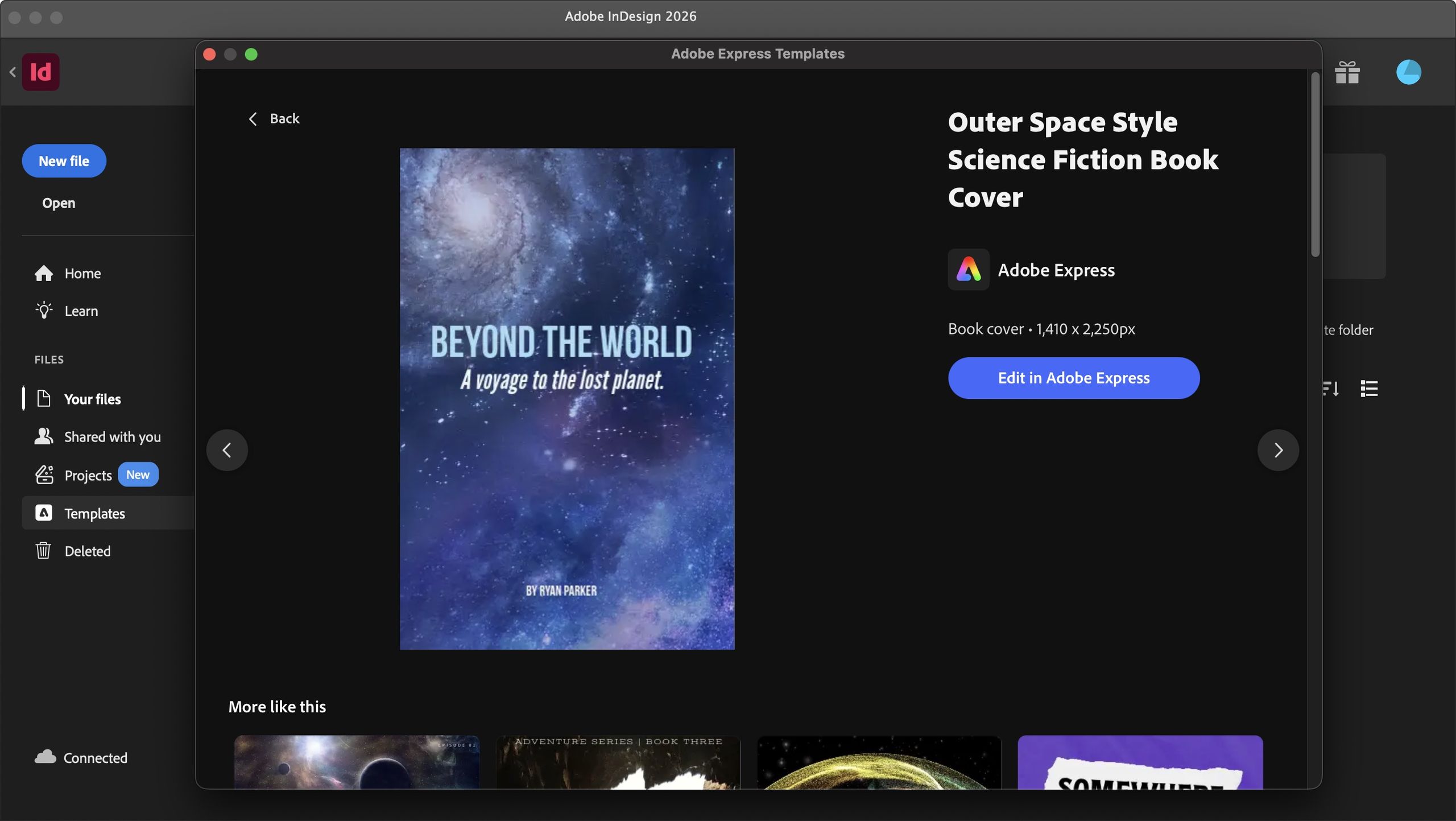
On InDesign’s Home Page, you’ll find a ‘Templates’ menu in the left sidebar. This allows you to browse Adobe Express templates directly from within InDesign. Pretty cool, right? Except… not really. You see, once you select a template, it launches your web browser and takes you to Adobe Express online.
You’d think if you can browse the template inside InDesign, you should be able to work on it in InDesign, but no. There is a cumbersome workaround: download the template from Adobe Express as a PDF, and load that PDF in InDesign, but why would such a step be necessary is a mystery to me (at least you’re not restricted to Chrome here).
Opening a PDF in InDesign is a pretty big deal, especially since everything in that document becomes editable. You’ll find that most of the formatting is preserved – your mileage will vary, and I suspect depends on the complexity of the original file – but in my experience, the results were brilliant. Whenever you need to make alterations to a PDF, InDesign may well have become your go-to app.
And rounding up this list, is support for maths equations. You can work with complex equations and symbols and they will all be displayed as they should inside an InDesign document. There’s even a ‘Math Expressions’ panel for you to manually add said symbols to your document (you can also copy and paste them from elsewhere). This’ll no doubt be great for scientific papers.
Adobe InDesign: Flex Layout

- A great way to create a responsive layout inside your document
- Big potential to quickly create alternative layouts in seconds
- It’s only let down by the feature’s inability to resize the objects within it
But perhaps the biggest new feature for this version of InDesign is Flex Layouts. Its purpose is to make it easy to create different layouts in seconds, and a great way to provide options for your team or clients. You get to select a number of assets on your page and link them together by ticking the ‘Create Flex Layout’ box. This essentially makes a responsive design inside InDesign.
The selected items are in a bounding box. Resize the box and the items will move around according to set parameters you control. You can alter the spacing between objects, and the orientation that they will take within the boundaries. It gives you great flexibility.
The only downside I found is that the Flex Layout cannot alter any selected asset’s size, which does limit its usefulness somewhat: you have to resize them manually, should you find the resulting space too big or too small for them.
Should I buy?

Buy it if…
If you’re in the market for a feature-rich desktop publishing application, with a series of useful new features, and are already wedded to the Adobe ecosystem.
Don’t buy it if…
You’re not a fan of Adobe, or of subscriptions, and are looking for an alternative that isn’t as expensive, even if it doesn’t have all the features InDesign has.
For more design tools, we tested the best Adobe InDesign alternatives